PBEM Box
PBEM Box is for manual PBEM workflows where turns are sent by email, cloud drive, chat, or another service. It works with local WDS save files and your normal Windows email app; it does not require signing in to a mail account inside WarHQ.
Review local PBEM turns
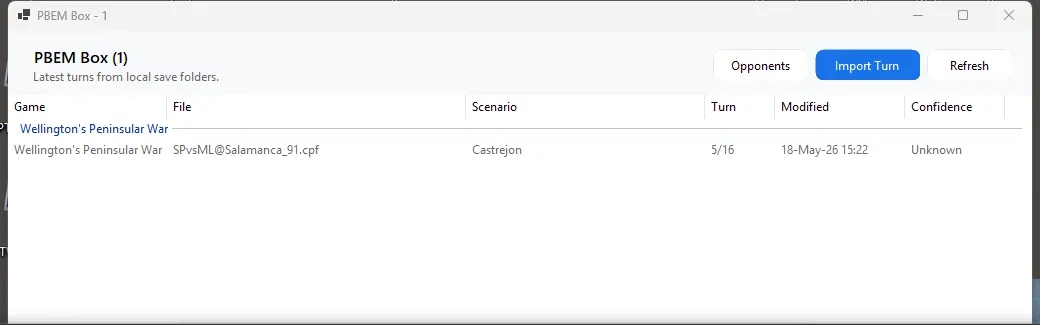
Section titled “Review local PBEM turns”Open PBEM Box from the Library toolbar. WarHQ scans the save folders for your installed WDS titles, finds supported PBEM files, and groups related files into PBEM threads.
PBEM Box shows the game, filename, scenario, turn number, last modified time, opponent assignment, and detection confidence when that information is available. Use a PBEM row to open the game, open the file location, copy the path, view file history, or assign an opponent.
Import a received turn
Section titled “Import a received turn”Use Import Turn when you want to browse for a received file manually.
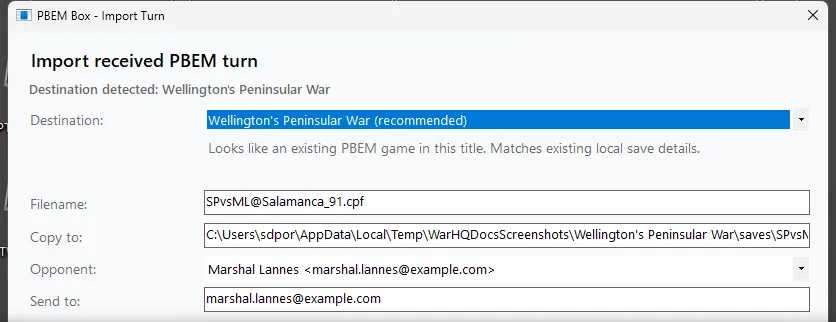
- Open PBEM Box from the Library toolbar.
- Click Import Turn.
- Choose the received
.bteor.cpffile. - Confirm the detected destination game.
- Edit Copy to if you want a different destination filename.
- Choose an existing opponent or create a new opponent if WarHQ asks.
- Select Open game after import if you want to launch the WDS title immediately.
- Click Import.
If the destination filename already exists, WarHQ asks whether you want to overwrite it or go back and change the destination name. Nothing is overwritten until you confirm the overwrite prompt.
Drag and drop a received turn
Section titled “Drag and drop a received turn”You can also drag a received turn file directly onto PBEM Box.
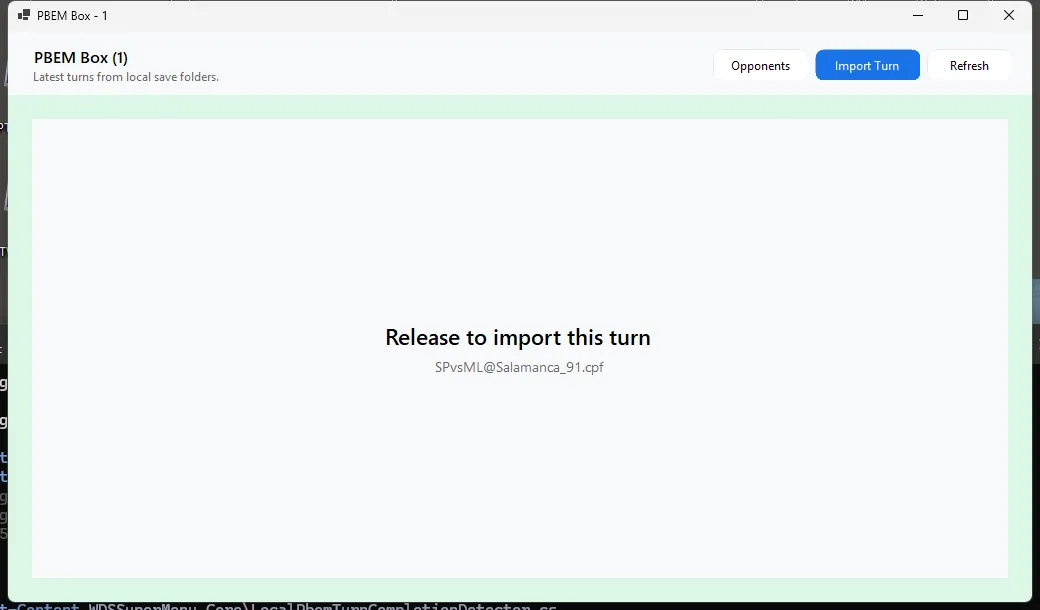
- Save the received turn attachment somewhere easy to find, such as Downloads or your desktop.
- Drag one supported PBEM turn file into PBEM Box. WarHQ accepts
.bteand.cpffiles. - Wait for the green Release to import this turn overlay.
- Release the mouse button.
- Confirm the import options in the dialog that opens.
If WarHQ does not show the green overlay, check that you are dragging only one .bte or .cpf file.
The main Library can also accept supported turn files, but PBEM Box gives the clearest import feedback.
Monitor a folder for received turns
Section titled “Monitor a folder for received turns”If your email app or browser saves attachments to the same place every time, WarHQ can monitor that folder and open the import workflow when a new supported turn arrives.
- Open Preferences > PBEM.
- Check Monitor a folder for received turns.
- Click Browse… and choose the folder, such as Downloads or a PBEM attachments folder.
- Click Save.
- Save or move one new
.bteor.cpffile into that folder. - When WarHQ detects the file, confirm the import options in the PBEM Box import dialog.
WarHQ watches only the folder you choose, not your mailbox. Existing files already in the folder are not imported automatically; use Import Turn for those. When a browser or email app is still writing a file, WarHQ waits for the file to settle before opening the import dialog.
Organize opponents
Section titled “Organize opponents”Open Opponents from PBEM Box to manage opponent names, email addresses, and filename aliases.
Use aliases when the opponent name in a filename is shorter or different from the name you use in WarHQ. During import, WarHQ can use saved aliases and filename patterns to suggest the opponent. If WarHQ needs help, choose an existing opponent or choose New. When an alias is needed for filename matching, WarHQ asks for the opponent’s alias in the filename.
Opponent assignments help WarHQ group related files and prefill the Send to field when it prepares a return email.
Play and detect your completed turn
Section titled “Play and detect your completed turn”Open a PBEM row to launch the correct WDS game. You can double-click the row, press Enter, or use the context menu.
When you launch a game from PBEM Box, WarHQ watches for a newly completed turn after the WDS game exits. If it detects an updated outgoing turn file, it asks whether you want to prepare a return email.
Prepare an outgoing email
Section titled “Prepare an outgoing email”When WarHQ prepares an outgoing email, it asks Windows to open your default email app using mailto:. WarHQ can fill in the recipient, subject, and message body, but mailto: cannot attach files automatically.
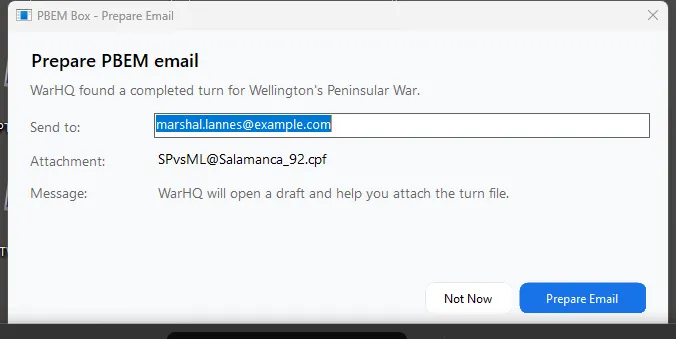
To make attaching the turn easier, WarHQ can:
- Copy the completed turn file to the clipboard so you can paste it into the email draft.
- Open File Explorer with the completed turn file selected so you can drag it into the email draft.
- Show a status message in the active WarHQ or PBEM Box window so you know what it did.
If Windows has no default email app configured for mailto:, WarHQ shows a warning instead of silently failing.
PBEM preferences
Section titled “PBEM preferences”Open Preferences > PBEM to adjust PBEM Box helpers.
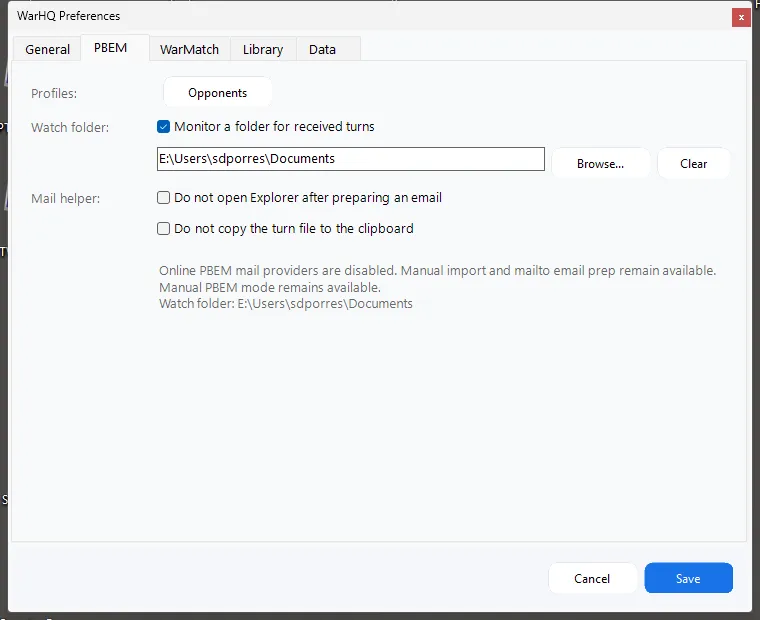
- Choose a watch folder if you want WarHQ to monitor a folder for new received turns.
- Disable opening File Explorer if you do not want WarHQ to show the completed turn file after preparing mail.
- Disable copying the file to the clipboard if you prefer to attach files manually.
Common PBEM Box flow
Section titled “Common PBEM Box flow”- Receive a
.bteor.cpffile from your opponent. - Import it through PBEM Box, drag it onto PBEM Box, or let the watch folder open the import workflow.
- Confirm the destination and opponent.
- Open the game from PBEM Box.
- Play the turn, save, and exit the WDS game.
- Let WarHQ prepare the email draft.
- Attach the completed turn by pasting from the clipboard or dragging it from Explorer.
- Review and send the message from your email app.